
How to Insert a Signature in an Invoice at InvoiceTemple
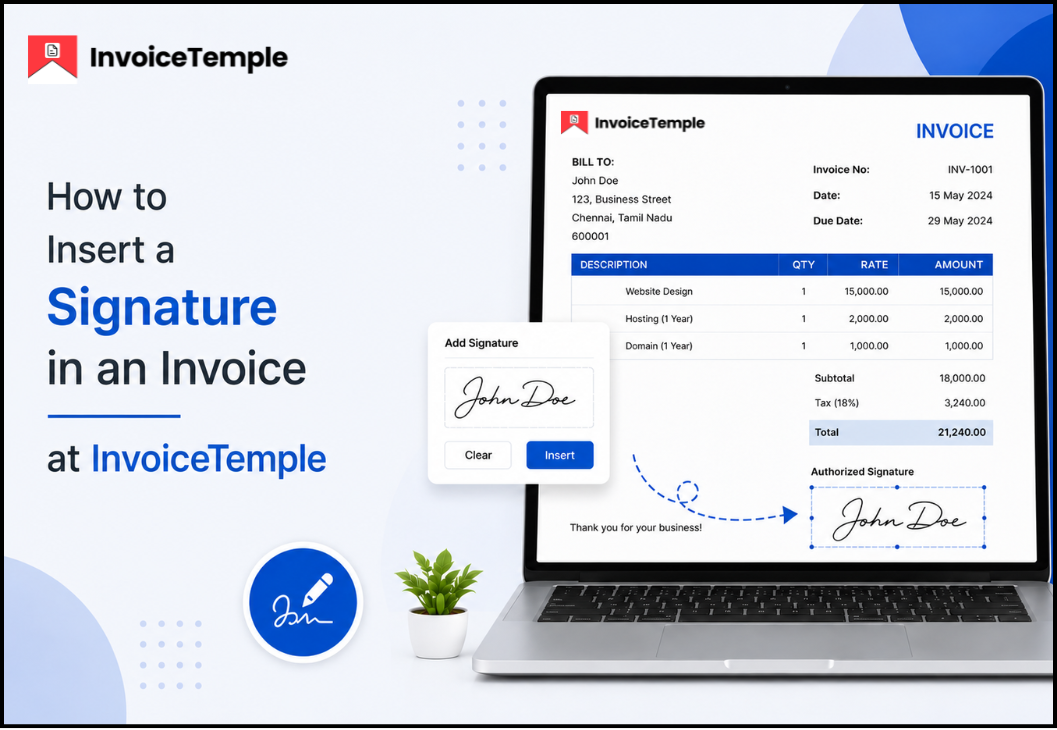
Adding a signature to an invoice gives it a professional and authentic look. In InvoiceTemple, you can add your Company Signature in two ways:
- From the Settings page (used as the default signature for all invoices)
- From the Invoice Editor page (used while creating or editing a specific invoice)
You can also add an optional Client Signature when required.
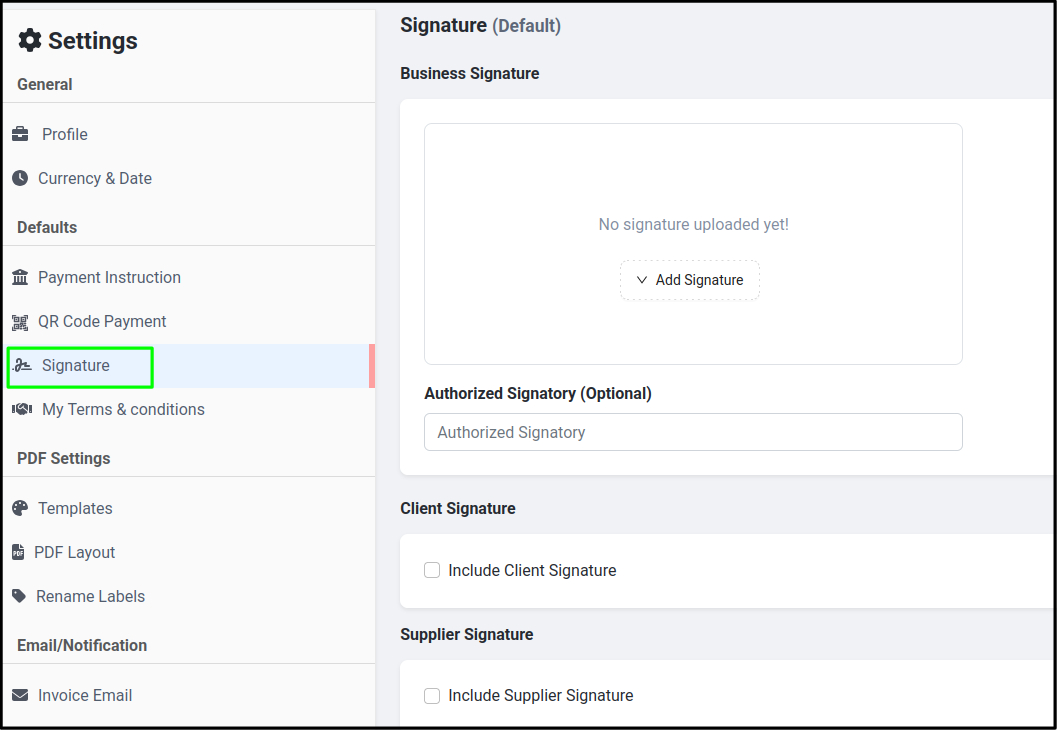
Add a Signature from the Settings Page
If you want the same signature to appear on all your invoices, you can upload it from the Settings page.
Steps:
- Go to the Settings.
- Open the Signatures section.
- Upload your Company Signature.
- Save the changes.
Once saved, your company's signature will automatically appear on all newly created invoices.
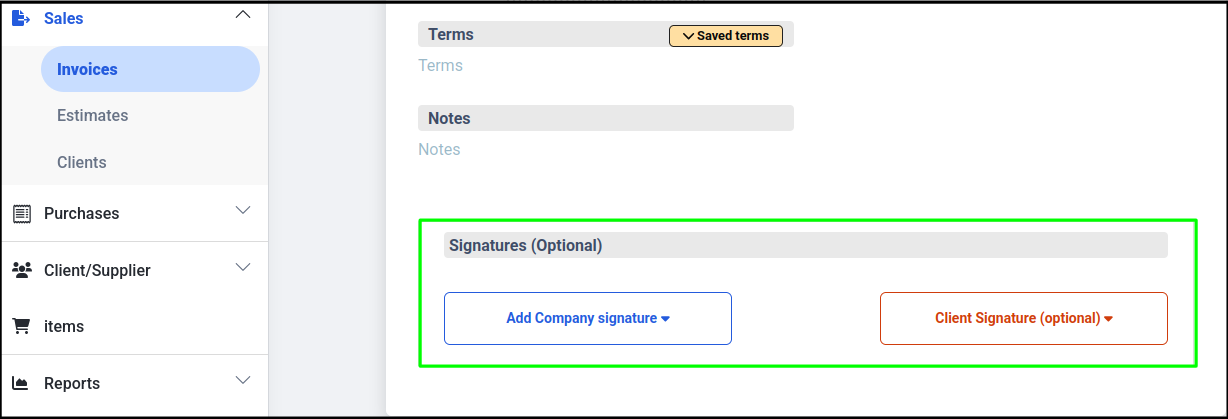
Add a Signature from the Invoice Editor
You can also upload or change your signature while creating or editing an invoice.
Steps:
- Open the Invoice Editor.
- Scroll to the Signatures (optional) section.
- Upload your Company Signature.
- The signature is displayed in the invoice preview.
Delete or Replace a Signature
If you need to update your signature:
- Click the Delete (🗑️) icon.
- A new signature image is uploaded.
- The new signature will replace the existing one in the future.
- Click the three-dot (⋮) menu to set as default signature
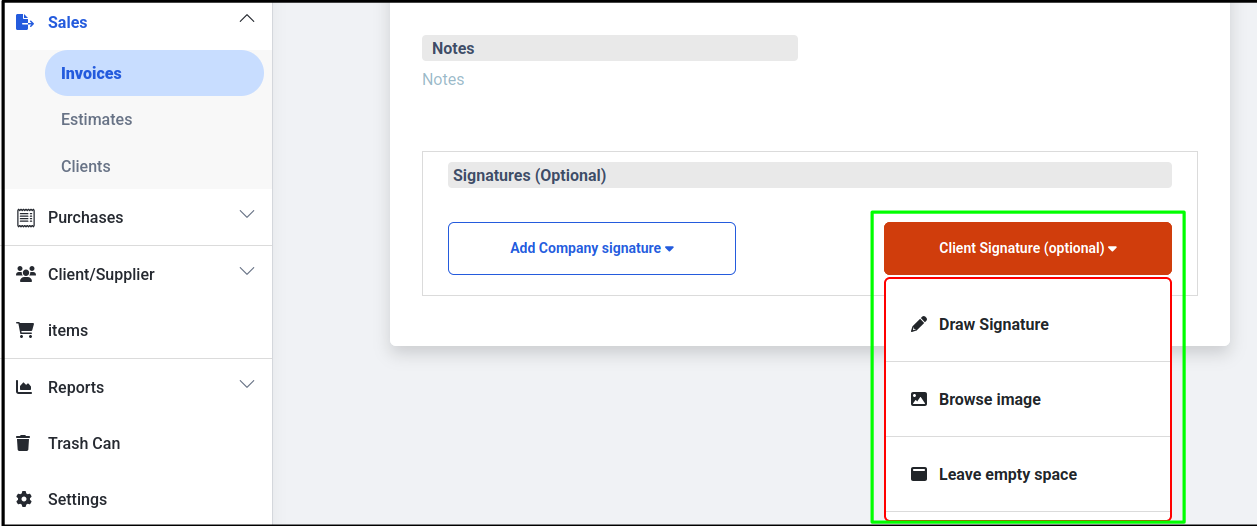
Add a Client Signature (Optional)
InvoiceTemple also allows you to collect client signatures.
Click Client Signature (optional) to view the available options.
Draw Signature
Choose Draw Signature to allow the client to sign directly using a mouse or touchscreen.
Browse Image
Select Browse Image to upload an existing signature image from your device.
Leave Empty space
Select the Leave Empty Space option if you don't want to include a client's signature on the invoice.
Features of the Signature Section
- Add a Company Signature from the Settings page.
- Add or change a signature in the Invoice Editor.
- Delete or replace the existing signature.
- Draw the client’s signature.
- Upload the client’s signature image.
- Client Signature is optional.
Benefits of Adding a Signature
- Give your invoices a professional appearance.
- Confirms that the invoice is authorized.
- Build customer trust.
- Makes your business documents more reliable.
Conclusion
InvoiceTemple makes it easy to add company and client signatures to your invoices. Whether you want a default company signature for every invoice or a one-time signature for a specific invoice, the process is quick and simple. These features help you create professional invoices while improving your overall billing experience.
Thanks.